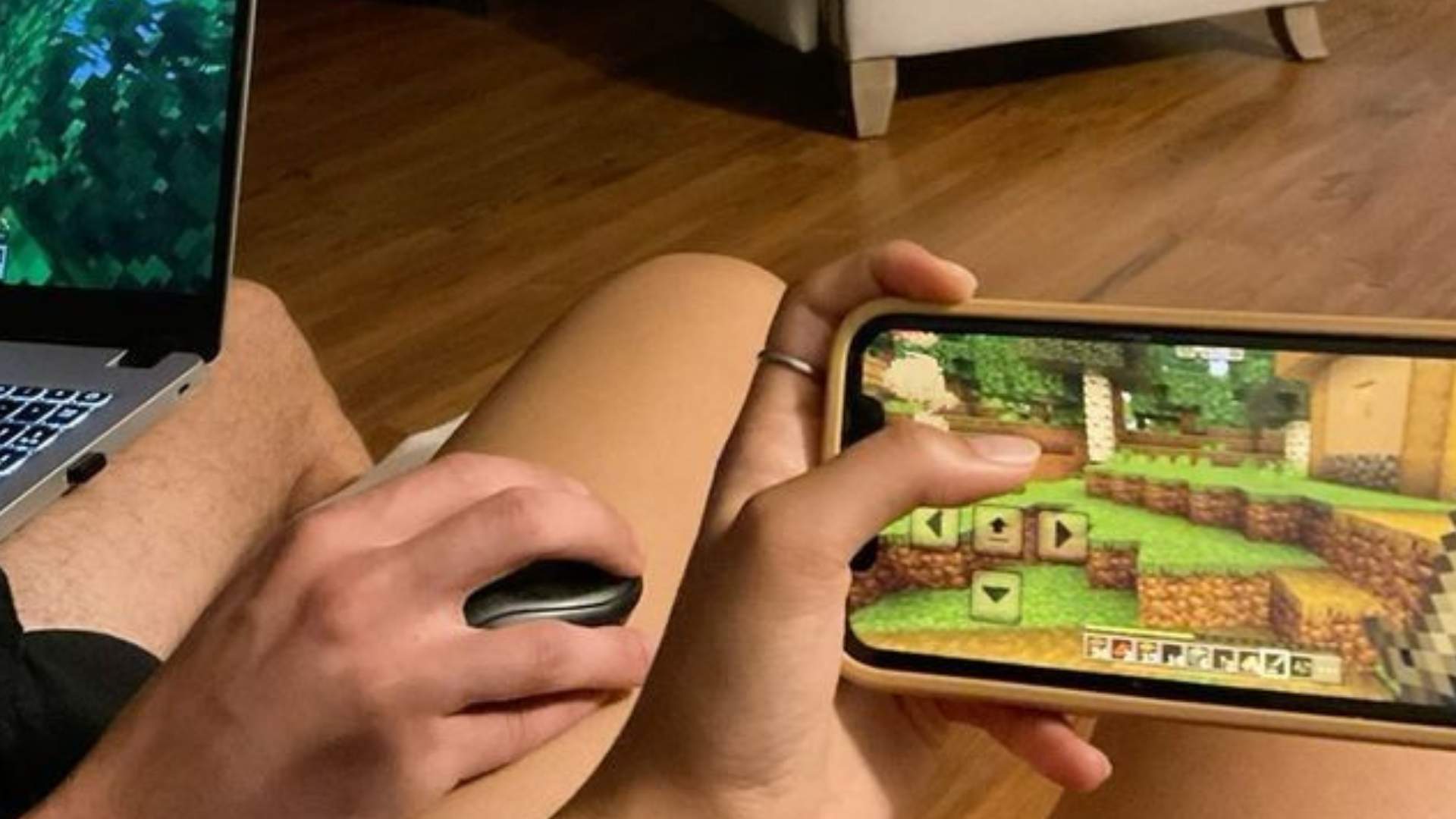
Sons Of The Forest Glider Location Where To Find And Use The Glider
Navigating the sprawling island in Endnight Games' survival title can be a time-consuming process on foot, but acquiring the hang glider drastically changes your mobility options. This valuable item allows players to leap from high cliffs and cover massive distances safely across the dense wilderness. Finding the glider requires reaching specific high-altitude camps tucked away in the mountain regions, making early preparation essential.
The primary location to discover a hang glider is situated near the central snowy mountain region on the island map. Players can locate an abandoned campsite resting near the edge of a steep cliff overlook. Spotting the bright orange frame resting against tents makes it easy to identify once you reach the correct elevation.
Several additional gliders can also be found scattered around other elevated camps across the wilderness map. Checking high cliffs and abandoned survivor camps will often yield extra gliders for multiplayer teammates. Following daily gaming news updates can help players keep track of newly added item locations across major patches.
Unlike standard inventory items, the glider is a heavy object that your character holds directly with both hands. To initiate flight, simply jump off a high ledge while holding the glider and look forward to catch the air. Pitching your camera downward will increase momentum, while leaning back allows you to gain slight lift and slow your descent.
Landing safely requires smooth navigation and a gradual angle toward flat ground or water surfaces. Steer clear of dense tree branches and rocky outcrops to avoid taking severe falling damage upon impact. Practicing basic flight controls over open fields helps build confidence before attempting longer mountain jumps.
Because the hang glider cannot be stored inside your regular backpack, managing its location is crucial after landing. You can drop the glider anywhere on the ground, but marking its position on your GPS tracker prevents losing it. Building a small elevated platform at your main base creates an ideal launching pad for future journeys.
Combining the glider with launch structures or dynamic weather conditions expands its usefulness during daily survival routines. Knowing when to take to the skies lets you bypass dangerous mutant patrols and gather distant resources with ease. Mastering this traversal tool ensures your survival experience remains both efficient and exciting.
How To Connect Mouse To PS5 For Supported Games
Connecting a computer mouse to a PlayStation 5 console can significantly transform your control precision in fast-paced competitive games and complex strategy titles. Modern console hardware natively supports mouse peripheral integration using simple USB connections as well as wireless setups. Understanding the proper setup steps ensures a smooth transition from traditional gamepads to a desktop-style control scheme.
Linking a wired mouse to your PS5 requires plugging the cable directly into any open USB port on the front or back of the console. The system immediately detects the new device and displays a brief notification on screen confirming peripheral recognition. This straightforward plug-and-play functionality makes wired peripherals the easiest option for immediate gaming sessions.
For wireless peripherals using a USB dongle, simply insert the receiver into an available USB port on your console. If you prefer Bluetooth mice, navigate to your system settings menu and open the accessories section to pair a new Bluetooth device. Following these steps helps players keep up with daily gaming news regarding hardware compatibility and console firmware updates.
Once your peripheral is connected, tuning its sensitivity and pointer speed is critical for achieving optimal in-game performance. Head to your console settings, select Accessories, and choose Controller and Mouse options to customize pointer behavior. Adjusting tracking speeds ensures your aim feels natural and responsive across different titles.
You can also swap primary button assignments to match your personal preference or hand dominance. Modifying these system-level parameters helps maintain consistency before launching any specific software title. Taking time to fine-tune sensitivity prevents abrupt jumps during intense combat scenarios.
While the PS5 hardware supports mouse input natively, individual game developers decide whether to enable mouse controls in their games. First-person shooters like Call of Duty and Fortnite feature built-in peripheral support, allowing seamless switching from controller inputs. Always verify in-game control settings to ensure keyboard and mouse layouts are actively recognized.
Certain multiplayer games automatically place mouse users into dedicated lobbies with PC players to maintain competitive fairness. Checking developer patch notes provides clarity on how control schemes influence matchmaking rules. Unsupported games will simply ignore mouse inputs, defaulting back to DualSense controller commands.
If your mouse fails to respond after connection, try inserting the USB cable or dongle into a different port on the console. Restarting your console while the device remains plugged in often resolves temporary hardware recognition bugs. Ensuring your wireless device has full battery power also prevents random disconnects during play.
High-end gaming mice with onboard memory allow you to save custom DPI profiles directly onto the device using a PC beforehand. Utilizing local profile saves guarantees your preferred DPI settings remain intact when plugged into the PS5 console. Following these troubleshooting tips guarantees a reliable gaming experience every time.
can i connect ps4 controller to ps5 Compatibility Rules And Supported Games
Upgrading to a PlayStation 5 brings incredible performance improvements, but many players wonder if their existing DualShock 4 controllers can still be put to good use. The short answer is yes, you can connect a PS4 controller to a PS5 console, but there are strict hardware rules regarding which games support it. Checking out updates from daily gaming news outlets helps clarify how Sony handles backwards compatibility across controller hardware generations.
Pairing your DualShock 4 pad to the PS5 is a quick process that takes only a minute to configure. You can plug the controller into the front USB port of the console using a standard Micro-USB cable and press the PS button to sync it. Once registered to a user account, the controller can be disconnected and used wirelessly via Bluetooth for convenient local multiplayer sessions.
Sony enforces a strict policy that prevents PS4 controllers from playing native PS5 game releases. The console requires the DualSense controller for PS5 titles because next-gen games are built around new hardware features like haptic feedback and adaptive triggers. If you attempt to launch a native PS5 title with a DualShock 4 connected, a pop-up prompt will inform you to switch to a DualSense controller.
Where the DualShock 4 shines on current hardware is with backwards-compatible PlayStation 4 titles. Thousands of PS4 games running on the PS5 fully support the older gamepad without any loss of functionality. This makes the DualShock 4 an excellent backup controller when hosting friends for couch co-op matches in previous-generation games.
Official third-party PS4 peripherals, including licensed arcade fight sticks, racing wheels, and specialized flight sticks, generally work on PS5 consoles. Sony permits these specialized input devices to function with PS5 titles if the developer explicitly enables support. This policy ensures fighting game fans and simulation enthusiasts can continue using their high-end peripherals without forced upgrades.
Best Gaming Websites in The World